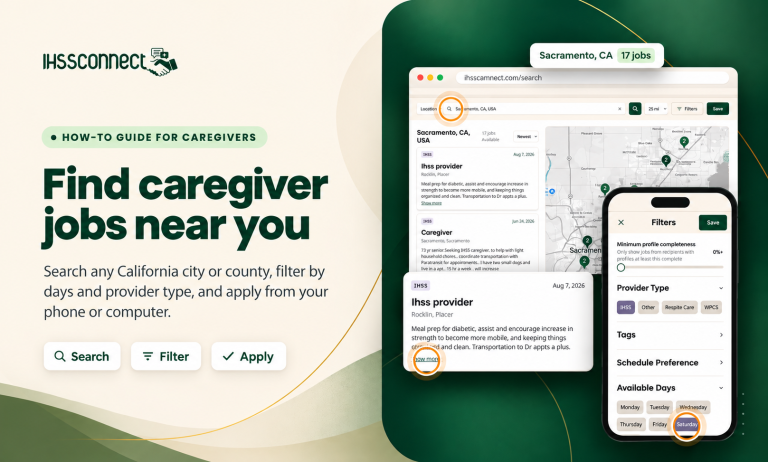
IHSS Connect’s Find Jobs page lists jobs posted by all kinds of in-home care recipients and their families across California. IHSS, WPCS, respite care, and day care are the primary focus. You can search any city or county, choose how far you’re willing to travel, narrow the list with filters, and read the full details before you apply.
This guide walks through a real search, using Los Angeles and Sacramento as examples. Each step has a picture from a phone and from a computer, with the spot to tap or click marked.
At a glance
Sign in
Job posts only show to signed-in caregivers.
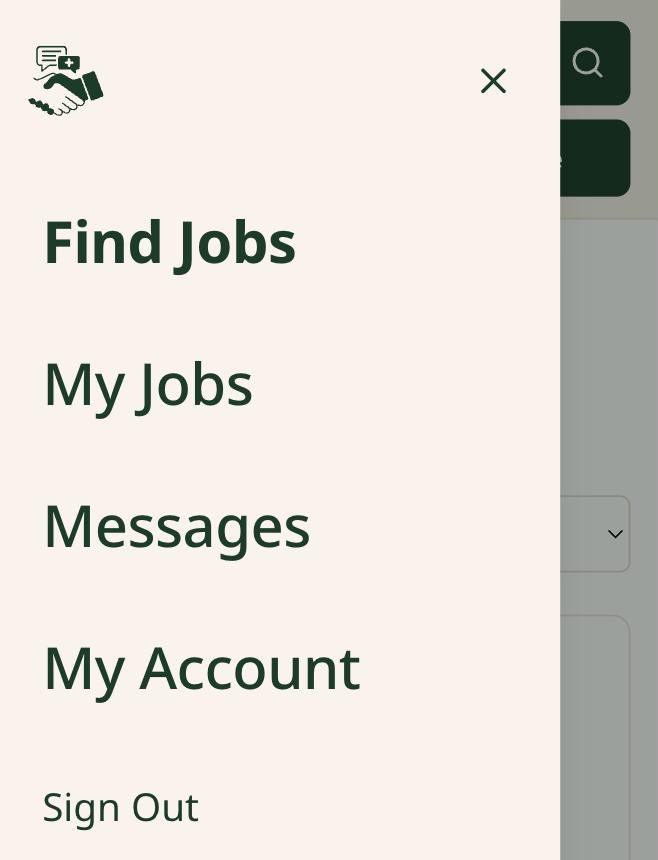
Open Find Jobs
It’s the first item in the menu.
Search a city or county
Pick your area from the list that appears.
Set distance and filters
10 to 100 miles, plus days, provider type and more.
Open a job and apply
Tap Show more, read the details, then tap Apply.
Before you start: sign in
Job posts are only visible to signed-in caregivers. If you open Find Jobs while signed out, you’ll see how many jobs are in an area, but not the posts themselves. Sign in, or create a free account, to see the listings and apply.
Step 1: Open Find Jobs
After you sign in, IHSS Connect may take you straight to Find Jobs. If it doesn’t:
- On a phone: tap the menu icon (three lines) in the top-left corner, then tap Find Jobs.
- On a computer: click Find Jobs in the menu bar at the top of the page.
On a phone

On a computer
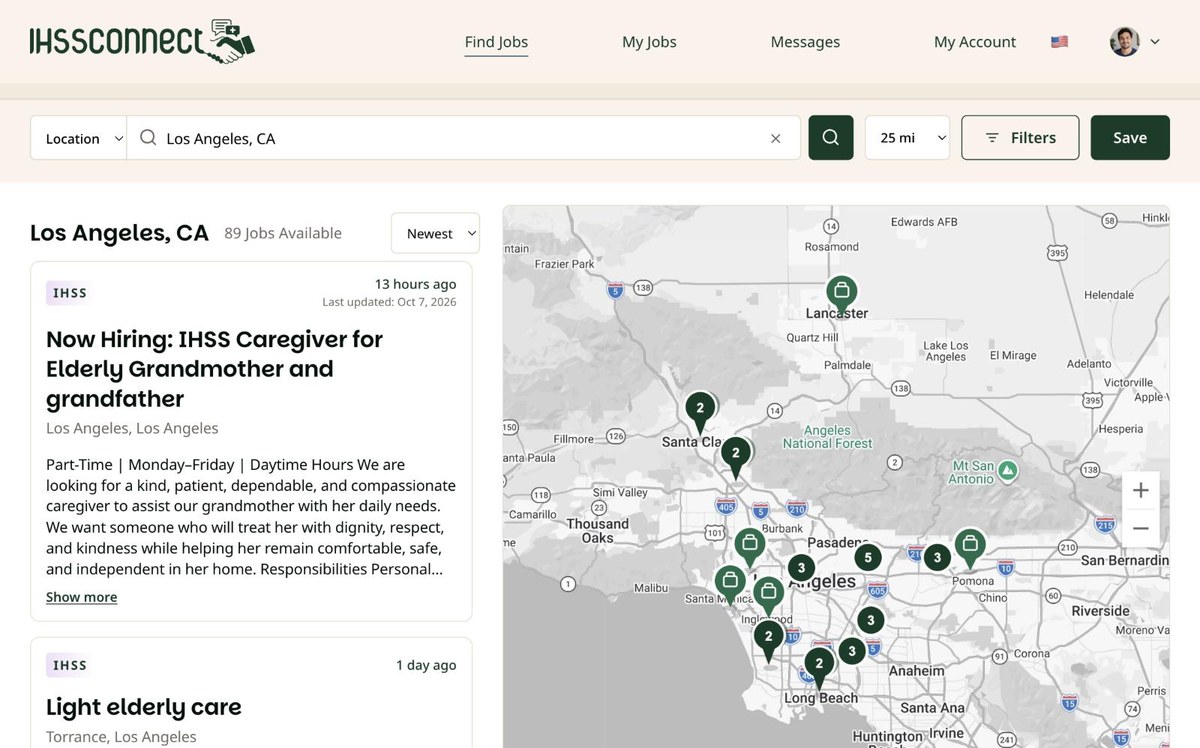
Step 2: Search a city or county
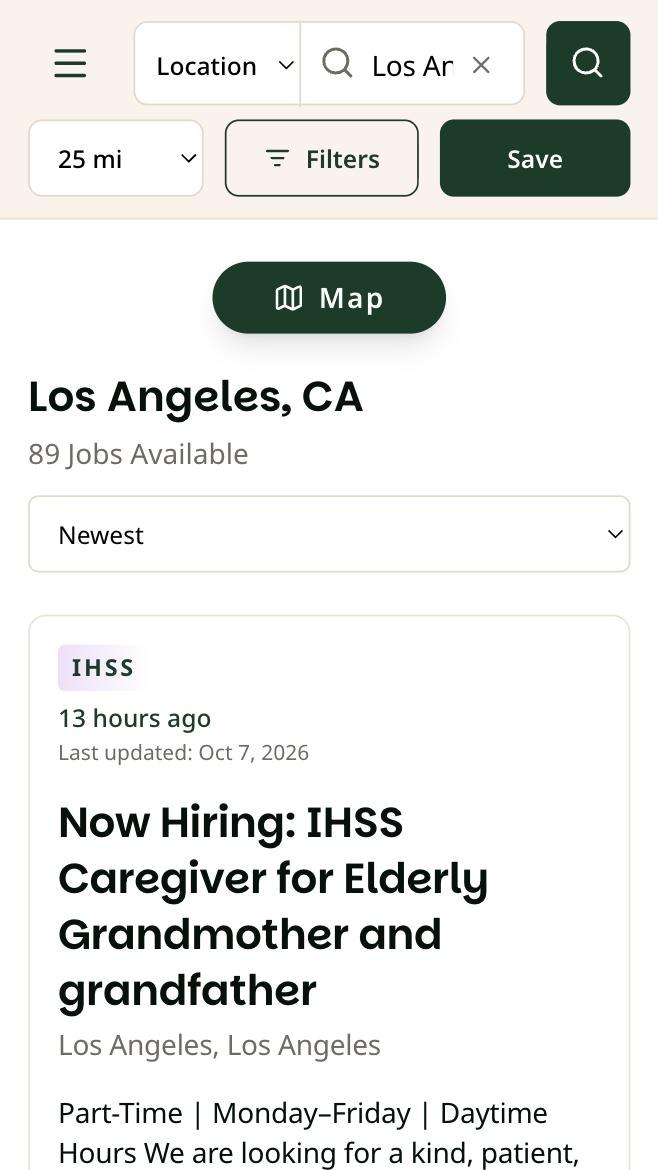
The page may already show jobs for an area, such as Los Angeles. To look somewhere else:
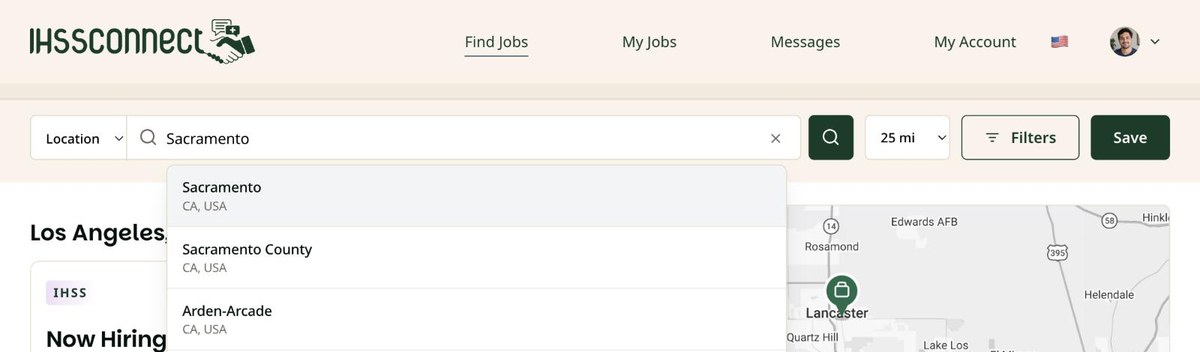
- Check that the small box at the left of the search bar says Location.
- Tap the search box and just start writing to search new area.
- Type a city or county. A list of matching places appears as you type.
- Tap the place you want. The results load right away, with no extra button to press.
On a phone


On a computer


Counts change every day as families post new jobs and fill old ones.
Step 3: Choose how far you’ll travel
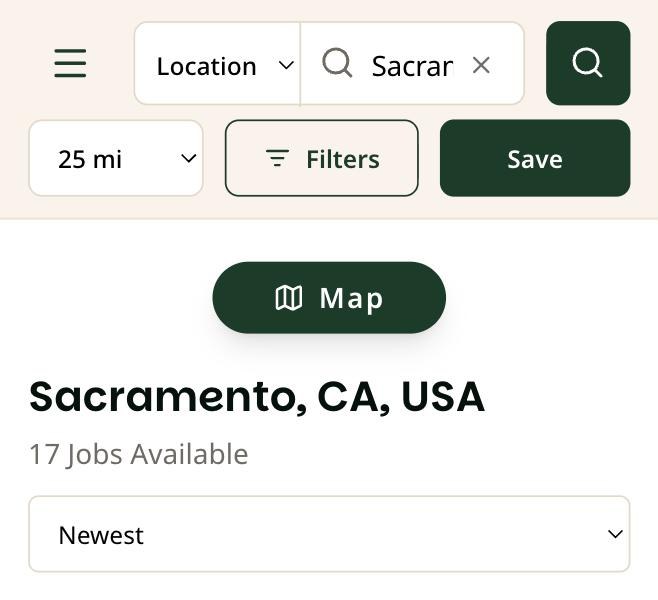
The miles box sets how far from your search area to look: 10, 25, 50 or 100 miles. It starts at 25. On a phone it sits under the search bar. On a computer it sits just right of the search button.
On a phone

On a computer

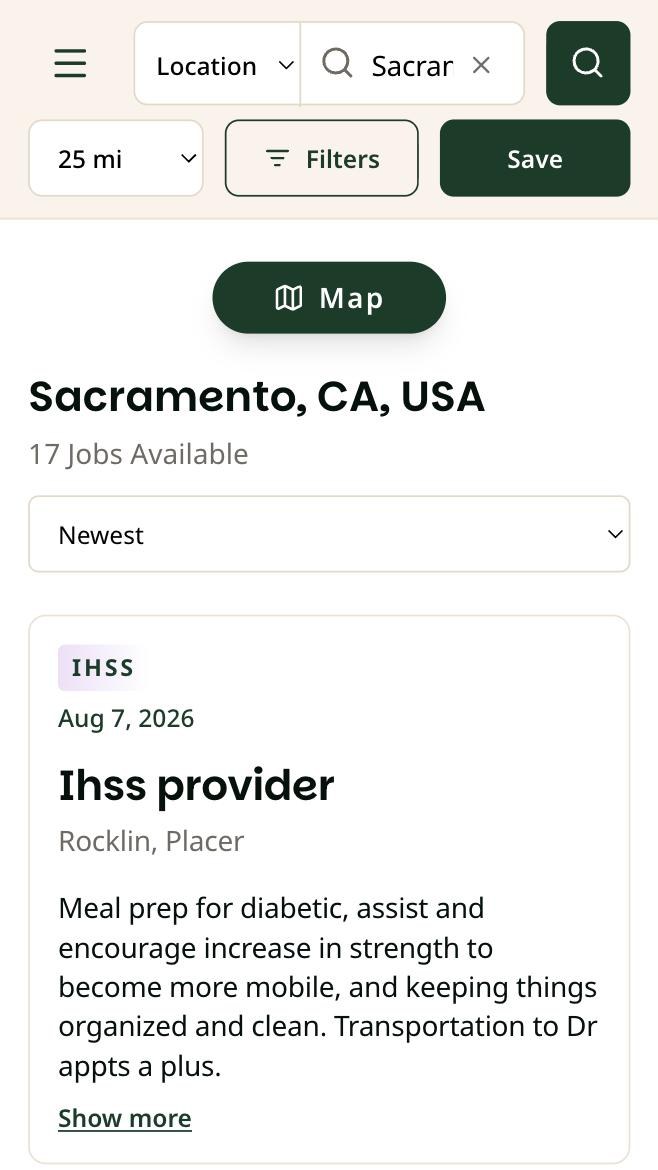
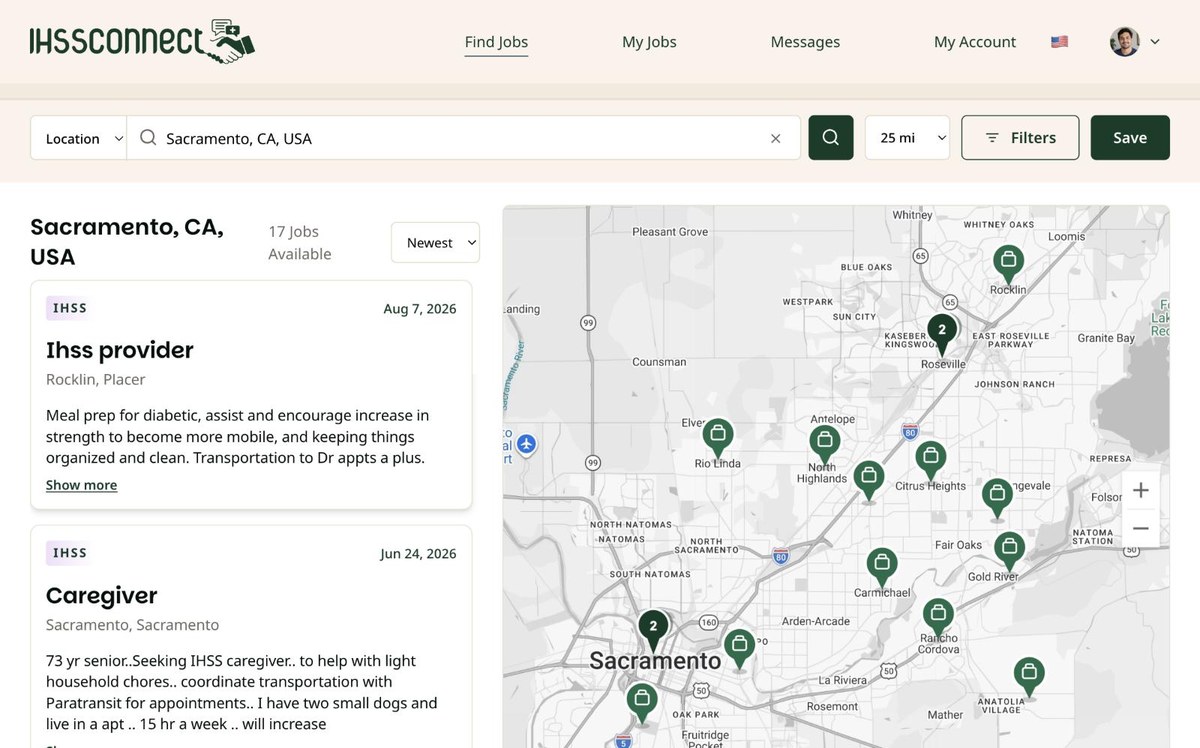
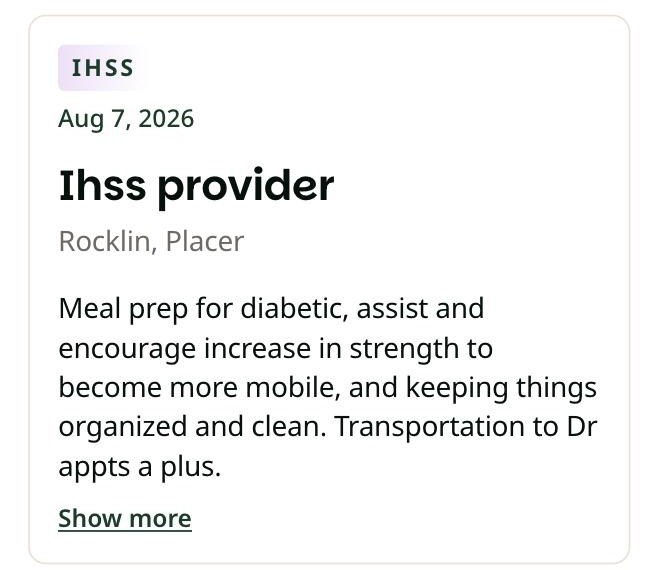
A wider search can cross county lines. Our Sacramento search at 25 miles included jobs in Roseville and Rocklin, which are in Placer County. Each job card lists the city and county, so check it before you apply.
Step 4: Narrow the list with Filters
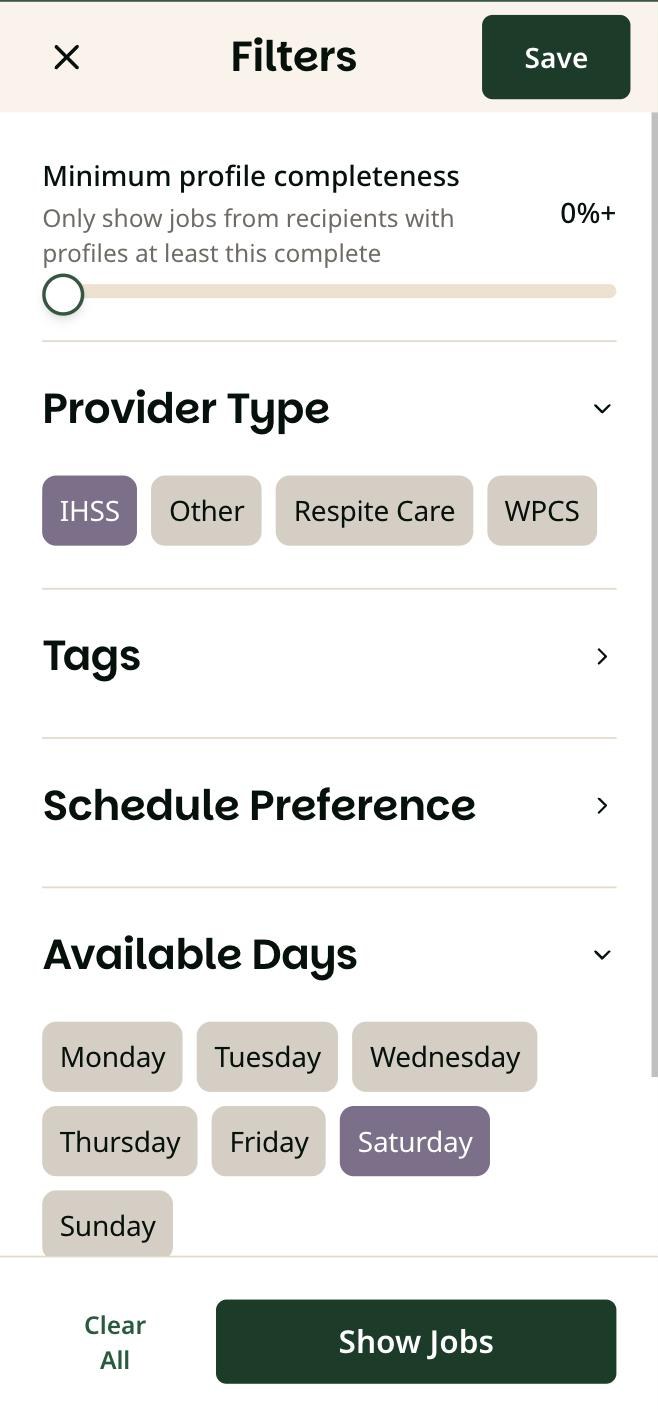
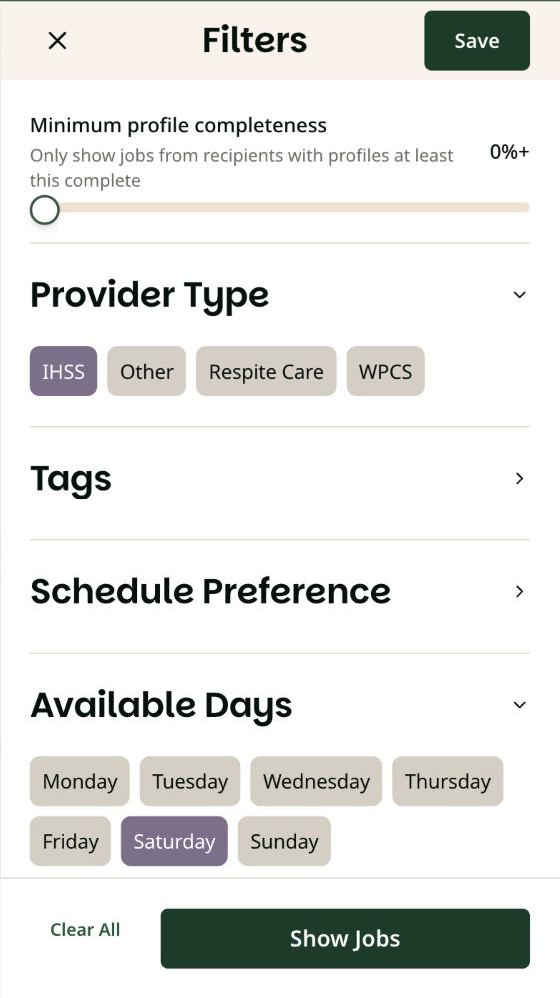
Tap Filters to open the filter panel. Tap a section name to see its choices:
• Minimum profile completeness: a slider that shows only jobs from recipients whose profiles are at least that complete.
• Provider Type: IHSS, WPCS, Respite Care or Other.
• Tags: Flexible Hours, Hybrid, Live-in, Long-term, On-site, Remote, Short-term or Urgent.
• Schedule Preference: Live-in care, Long-term, Short-term, or Temporary / On-call.
• Available Days: Monday through Sunday.
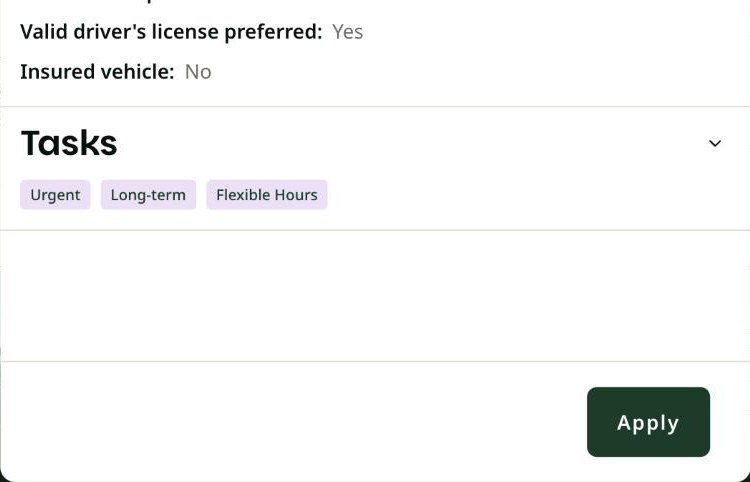
• Requirements: Non-smoker preferred, Valid driver’s license preferred, or Insured vehicle.
On a phone


On a computer

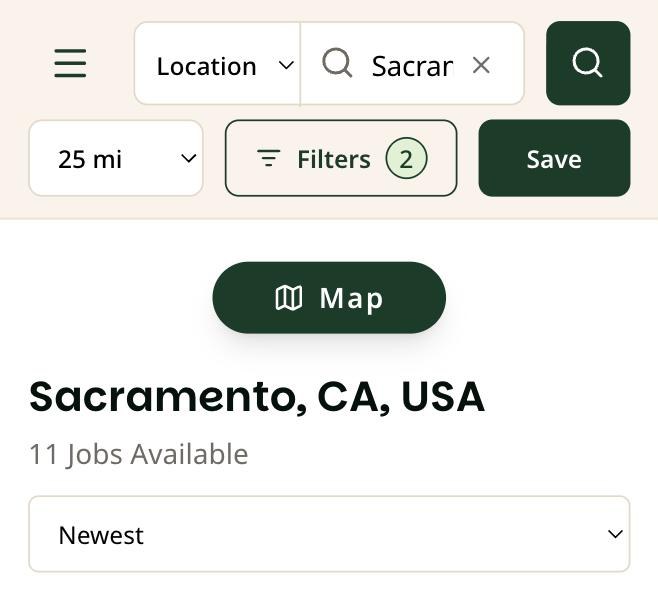
The choices you pick turn purple. Tap Show Jobs to see the results. The Filters button then shows how many filters are on. In our example, choosing IHSS and Saturday took Sacramento from 17 jobs to 11. To start over, open Filters and tap Clear All.
Worth knowing
Filters go by the boxes a family checked when they posted the job, not by the words in the post.
If a filter leaves you with only a few jobs, tap Clear All and skim the full list too.
Step 5: Open a job
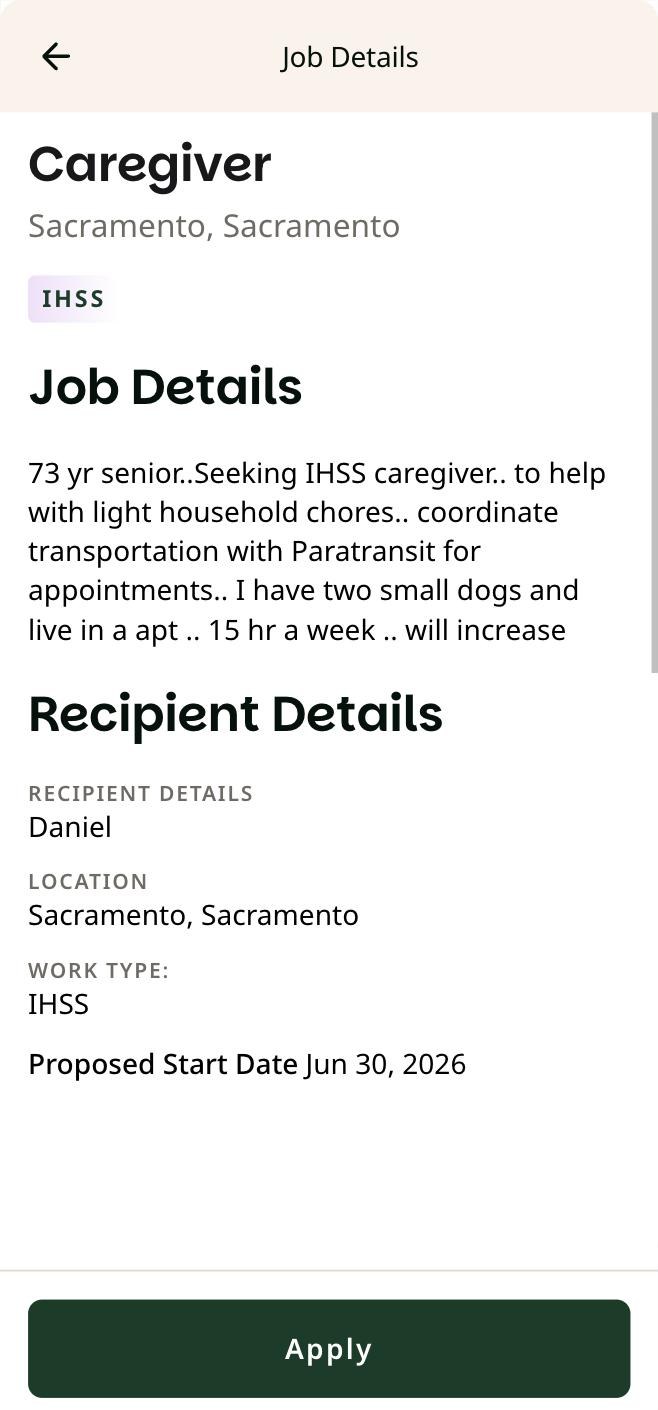
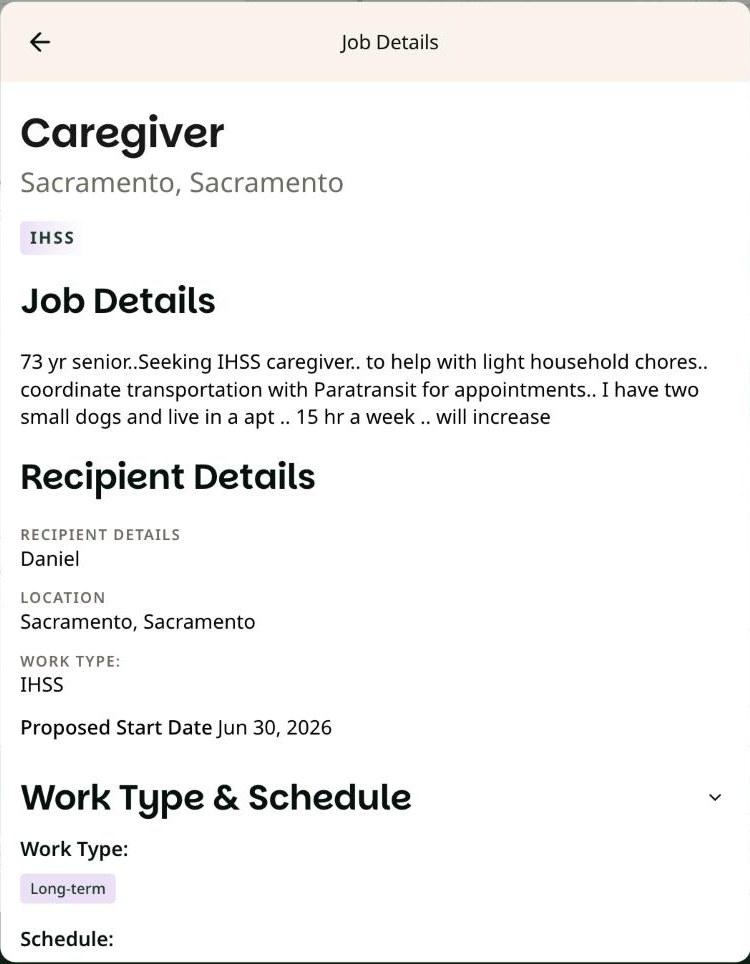
Each job card shows the provider type, when it was posted, the job title, the city and county, and the start of the description. Tap Show more to open Job Details, which shows:
- the full description
- Recipient Details: first name, location, work type and proposed start date
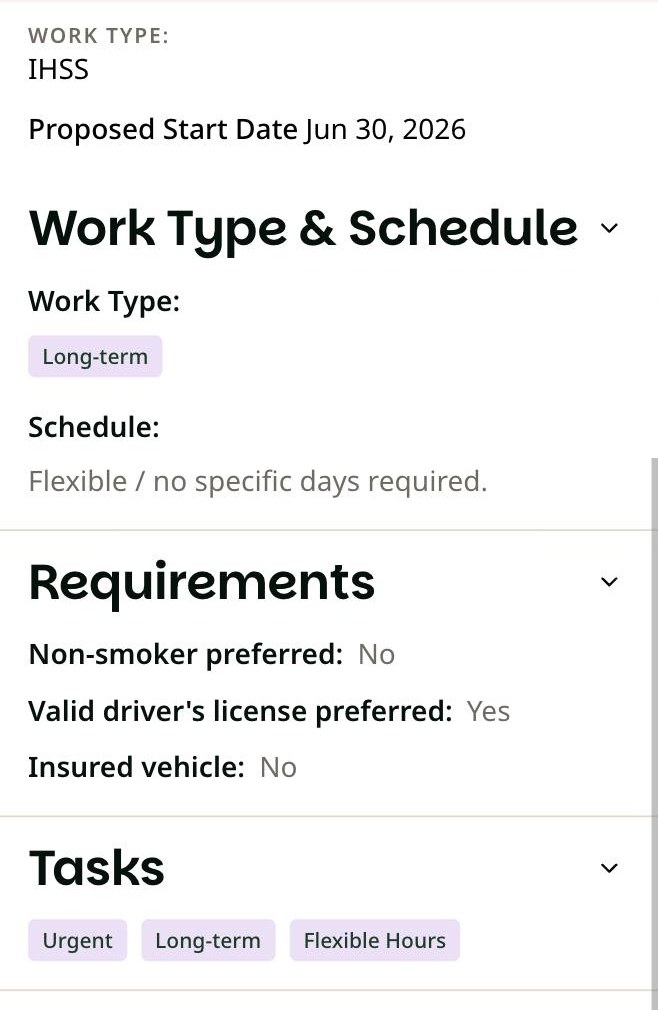
- Work Type & Schedule
- Requirements, such as whether a driver’s license is preferred
- Tasks, shown as tags such as Urgent, Long-term or Flexible Hours
- the Apply button
On a phone


On a computer


To go back to the list, tap the arrow at the top left of Job Details. The Newest box above the list changes the order to oldest first. Results show 50 jobs per page; use Next at the bottom of the list to see more.
Apply
When a job fits, tap Apply at the bottom of Job Details.
Families share personal details in their posts so they can find the right caregiver. Treat what you read as private, the same way you would in someone’s home.
If you’ve hidden your profile from caregiver search, you can still apply to jobs and message families. How to hide your profile and manage job alerts explains how hiding works.
Prefer a map?
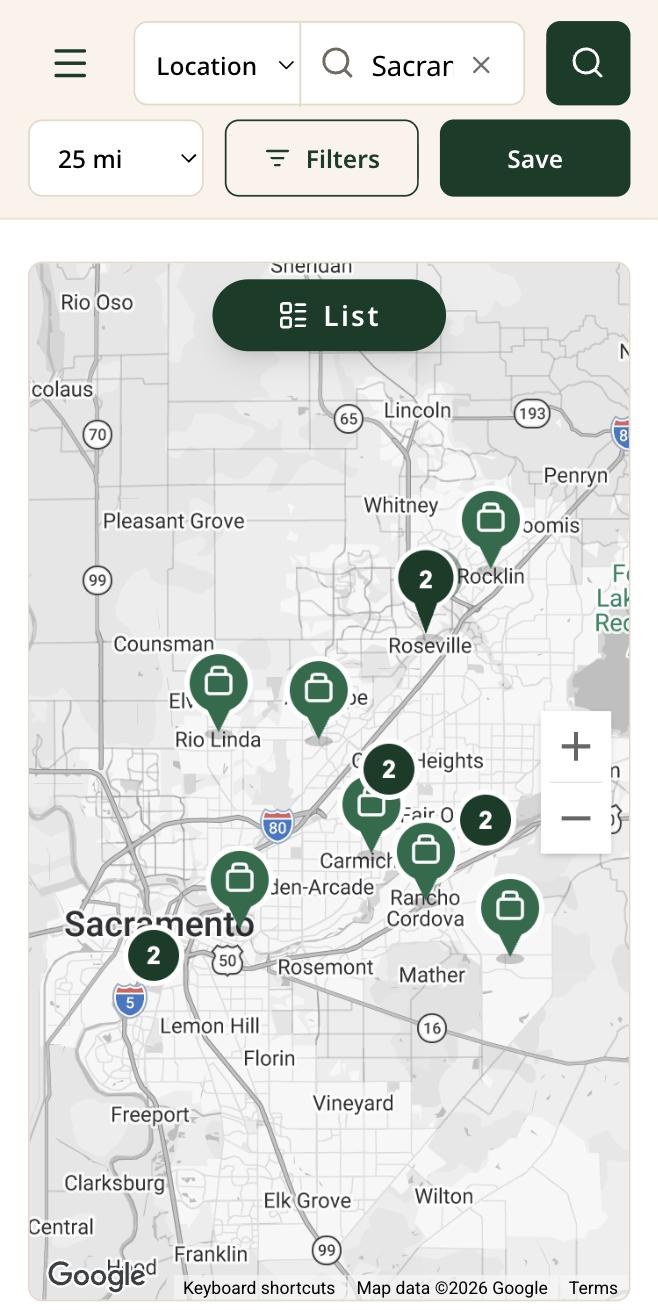
On a phone, tap Map above the results to see jobs as pins. Tap List to go back. On a computer, the map sits beside the list.
On a phone

How the map works
- A green pin is one job. Tap it to open that job’s details.
- A dark circle with a number holds several jobs close together. Zoom in with + to split them apart.
- On a computer, the map sits next to the list. Point at a pin to see the job title.
Save a search so new jobs come to you
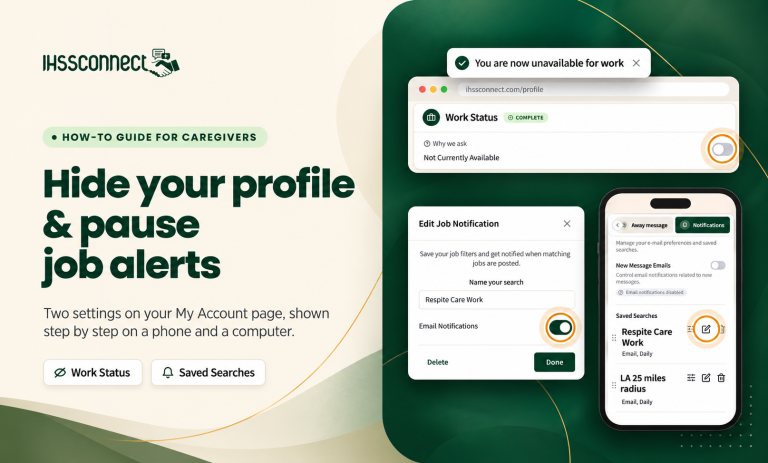
Once your search looks right, tap Save next to Filters and give the search a name. IHSS Connect emails you once a day when new jobs match, and sends nothing when there’s nothing new. Our guide to hiding your profile and managing job alerts shows how to pause or delete a saved search.
Related guide
Hide your profile and manage job alert emails
How to step out of caregiver search when you’re booked, and how to pause or delete the daily emails from a saved search.
Need help?
If something on your screen doesn’t match this guide, contact the IHSS Connect team through the Contact Us page and tell us what you see.
Ready to look?
Sign in and open Find Jobs. If something on your screen doesn’t match this guide, let the IHSS Connect team know what you see.
Sources
- IHSS Connect — Find Jobs (sign-in required to see listings) — Search box and place suggestions; distance choices; Filters sections and options; job counts for Los Angeles and Sacramento; job cards, Show more and Job Details; Apply button; Map and List views; signed-out message. Screens captured October 8, 2026.https://ihssconnect.com/search?tab=jobs
- IHSS Connect — How to Hide Your Caregiver Profile and Stop Job Alert Emails — Saved searches and daily job alert emails; Work Status.https://ihssconnect.com/how-to-hide-your-caregiver-profile-and-stop-job-alert-emails-on-ihss-connect/
- IHSS Connect — Contact Us — Where to get help with your account.https://ihssconnect.com/contact-us
The live IHSS Connect site is the primary authority for this guide. Job counts change daily. Names and photos in the screenshots are stand-ins, and some job posts were left out of view to protect families’ privacy.