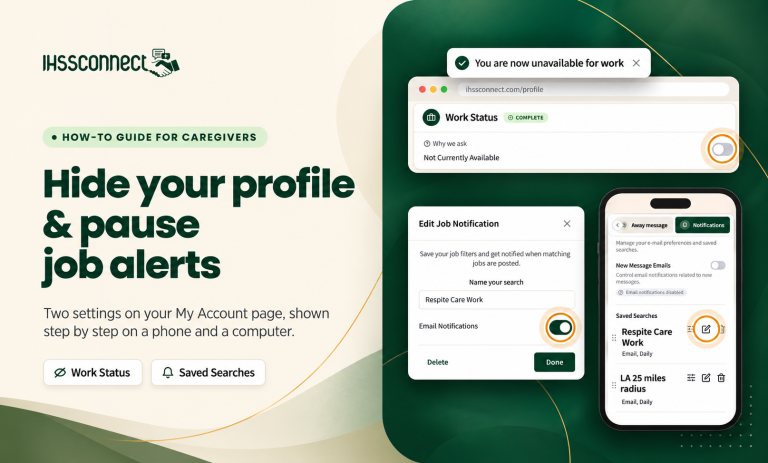
Some weeks you don’t want new work. Your schedule might be full, you might be caring for someone at home, or you might just need a break. IHSS Connect lets you step out of view without deleting your profile, and step back in when you’re ready.
This guide walks through two settings: hiding your profile from family searches, and stopping the daily job alert emails that come from a saved search. Both are on your My Account page. Each step has a picture from a phone and from a computer, with the spot to tap marked.
At a glance
Hide your profile
Turn off the Available for Work switch. Families won’t find you in caregiver search until you turn it back on. You can still message families and apply for jobs.
My Account → Work StatusStop job alert emails
Open a saved search with the pencil icon and turn off Email Notifications, or delete the search with the trash can.
My Account → Notifications
These are separate settings. Change both if you want to take a full break.
First, open My Account
Sign in to IHSS Connect, then:
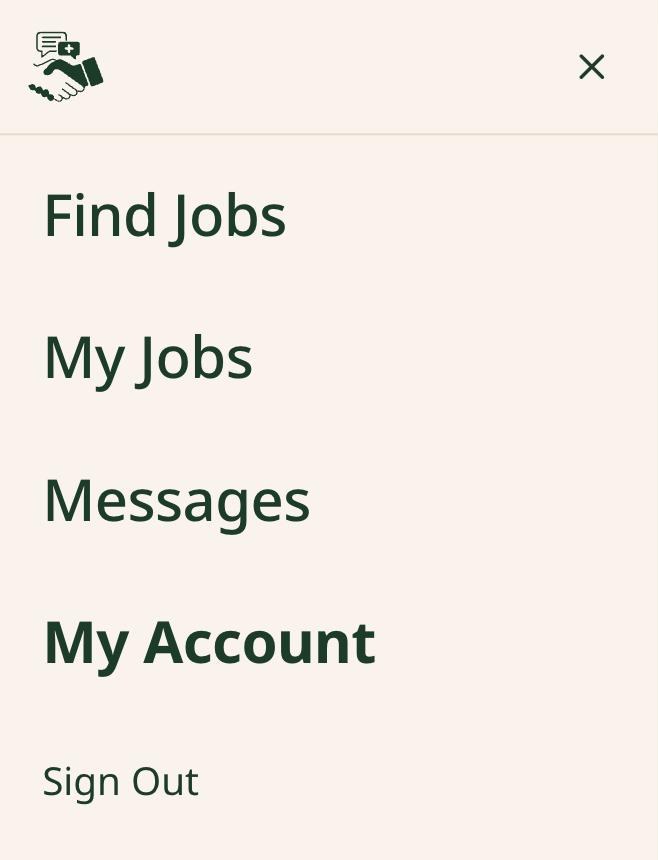
- On a phone: tap the menu icon (three lines) in the top-left corner, then tap My Account.
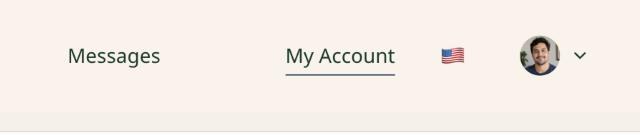
- On a computer: click My Account in the menu bar at the top of the page.
My Account opens your profile page. Near the top is a row of section buttons, from Account through Notifications. Tap one to jump straight to that section. Everything in this guide is on that one page.
On a phone
On a computer
Hide your profile from family searches
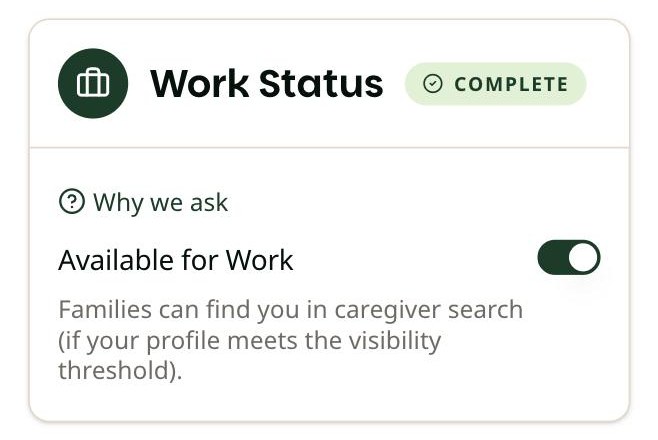
The Work Status switch decides whether families can find you when they search for caregivers.
- On My Account, scroll to Work Status, or tap Work Status in the row of section buttons.
- Find the switch next to Available for Work. When it’s dark green, families can find you.
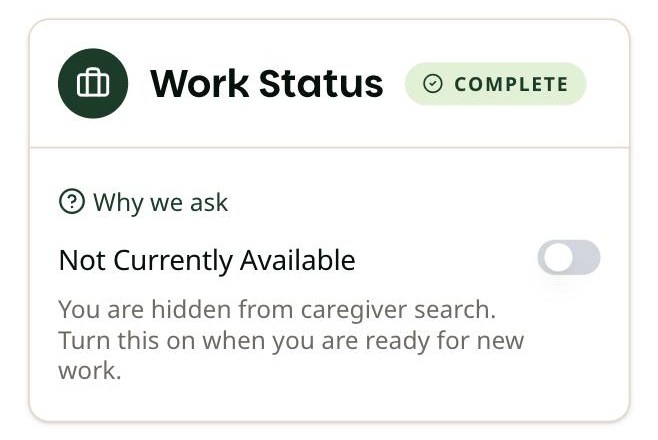
- Tap the switch. It turns gray, and the label changes to Not Currently Available.
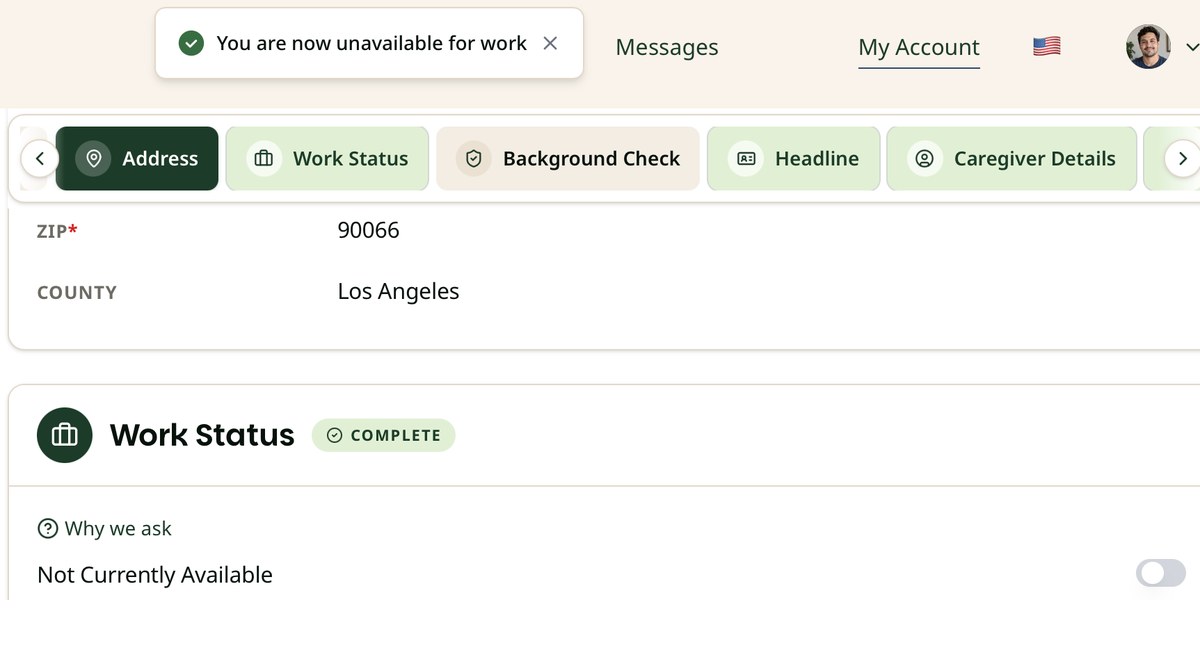
- Look for the message at the top of the screen: You are now unavailable for work. There’s no Save button. The change saves as soon as you tap.
On a phone

On a computer

Hiding only changes search. While your profile is hidden, you can still message families and apply for jobs. Families just won’t come across you when they search for caregivers.
When you’re ready for new work
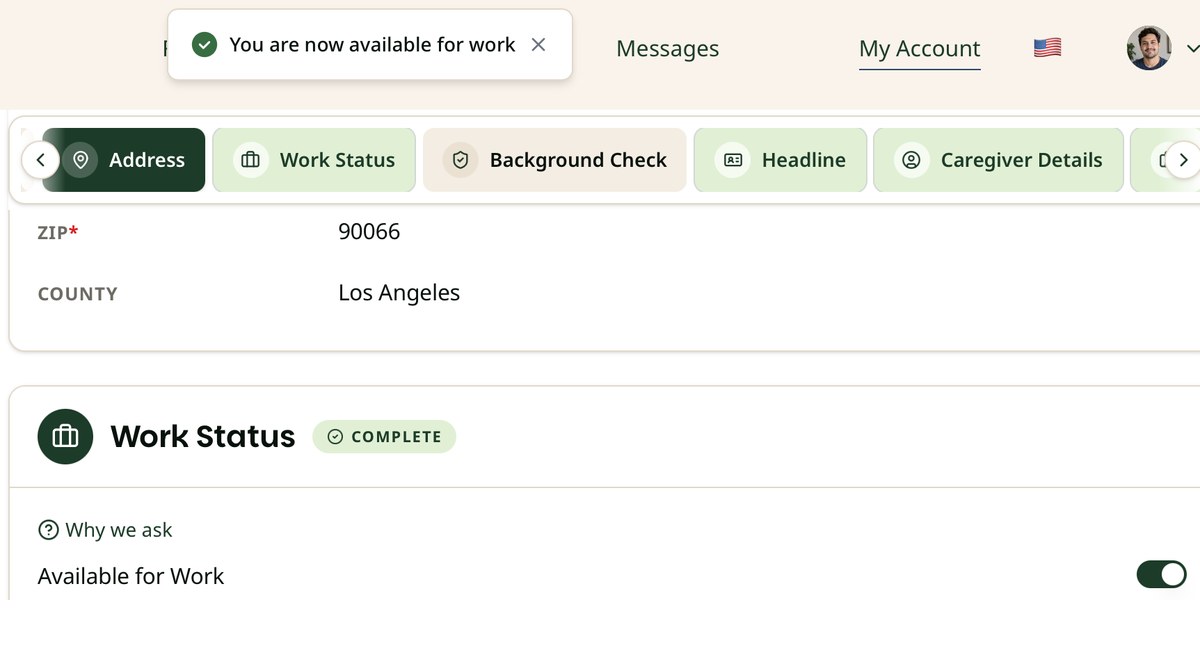
Go back to Work Status and tap the switch again. It turns dark green, the label reads Available for Work, and a message at the top confirms You are now available for work.
Worth knowing
Hiding your profile keeps you out of caregiver search. If you’d also like families who message you to get a quick answer, the Away message section on the same page can reply for you.
If you haven’t answered a family within 30 minutes, IHSS Connect emails them the reply you choose. One of the ready-made replies says you aren’t taking on new clients right now.
Stop daily job alert emails
A saved search is a set of Find Jobs filters, like location and distance, that you saved with the Save button. When new jobs match a saved search, IHSS Connect emails you about them daily. If nothing new matches, there’s no email.
You have two choices: pause the emails and keep the search, or delete the search. Each saved search has its own email switch, so if you have more than one, repeat the steps for each.
Pause the emails and keep the search
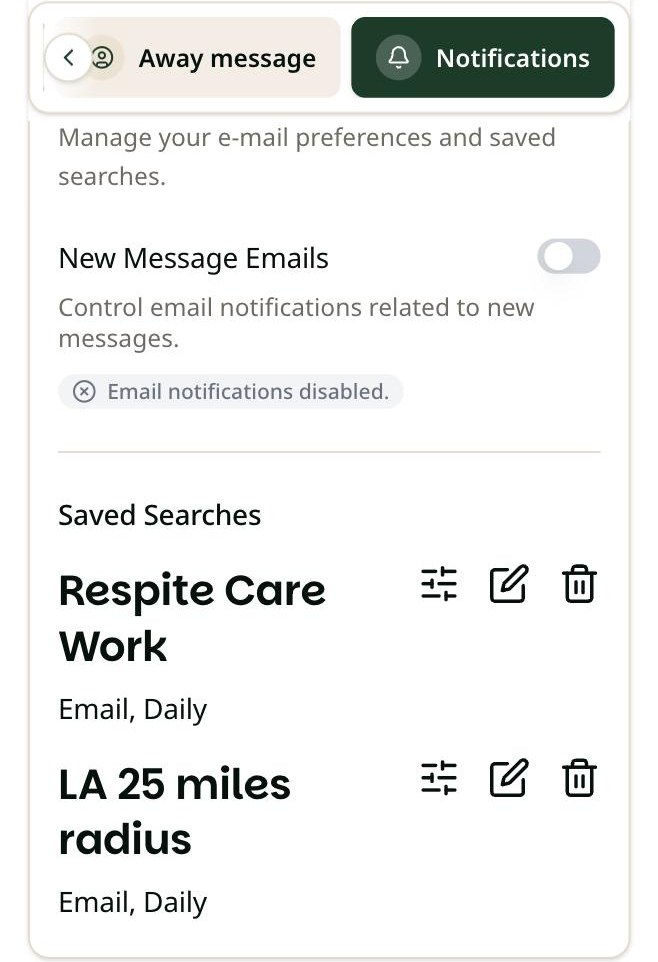
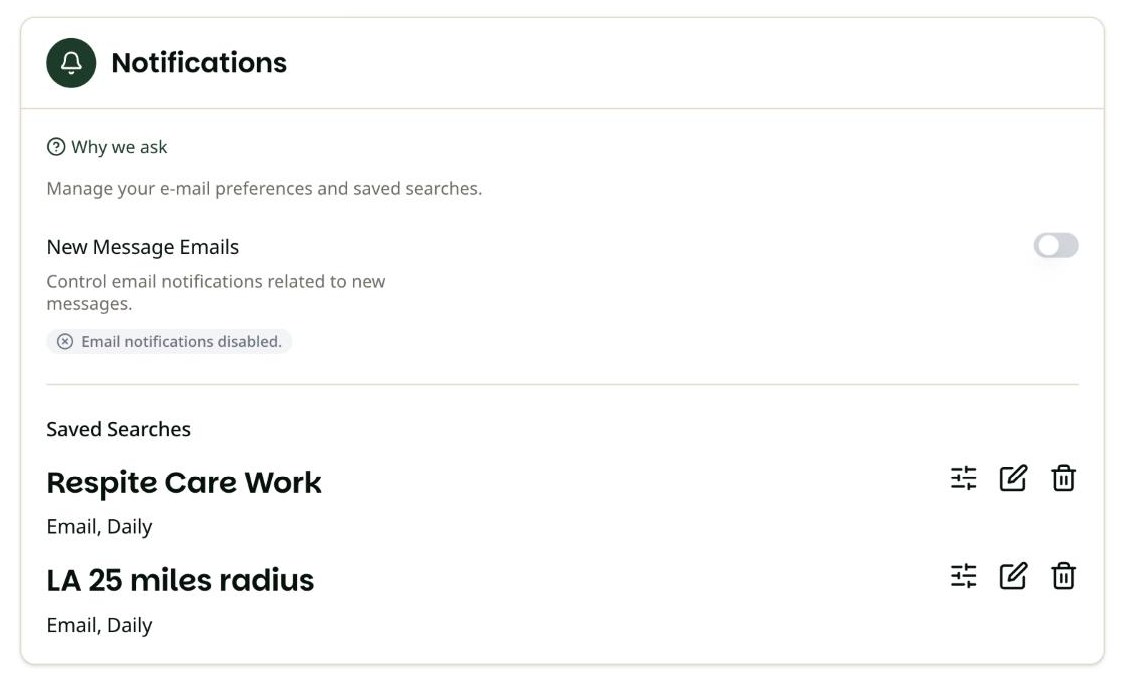
- On My Account, scroll to Notifications, or tap Notifications in the row of section buttons.
- Under Saved Searches, find the search. Each one shows the name you gave it, with how it sends alerts underneath (for example, “Email, Daily”).
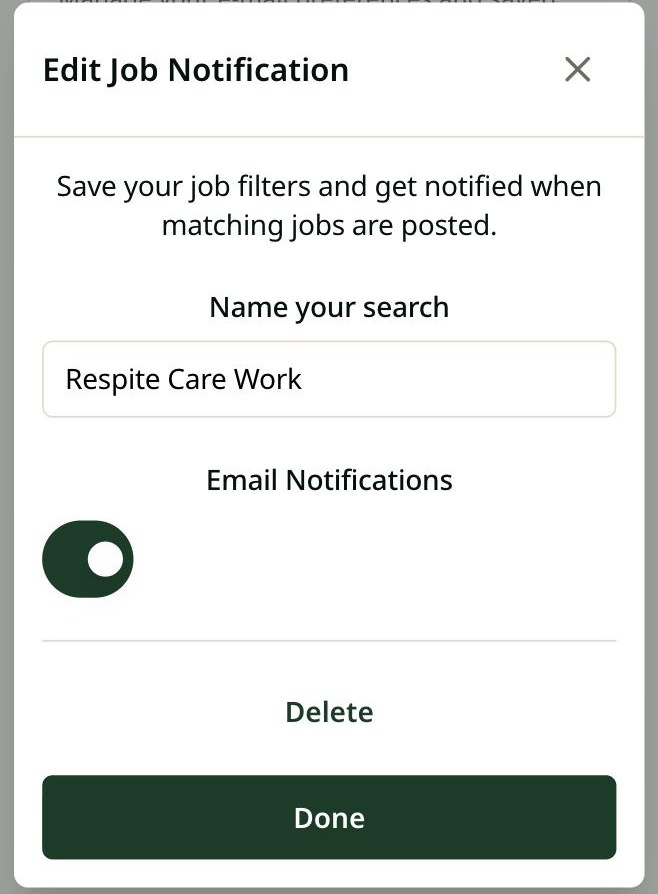
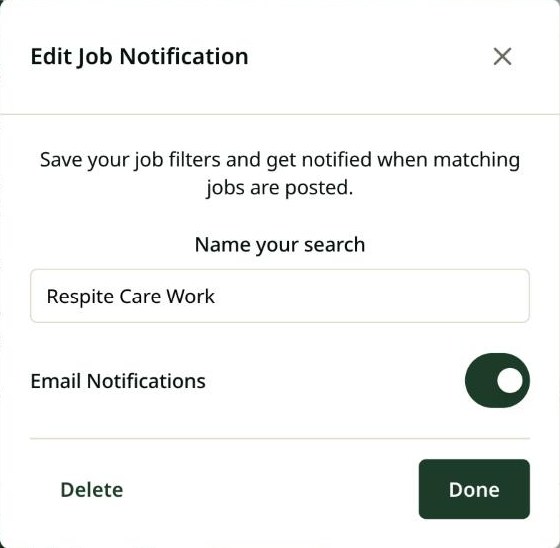
- Tap the pencil icon next to that search. A window called Edit Job Notification
- Tap the Email Notifications switch so it turns gray. It saves right away.
- Tap Done to close the window.
On a phone
On a computer
The search stays on your list. To get the emails again later, open the same window and turn Email Notifications back on.
Delete the search completely
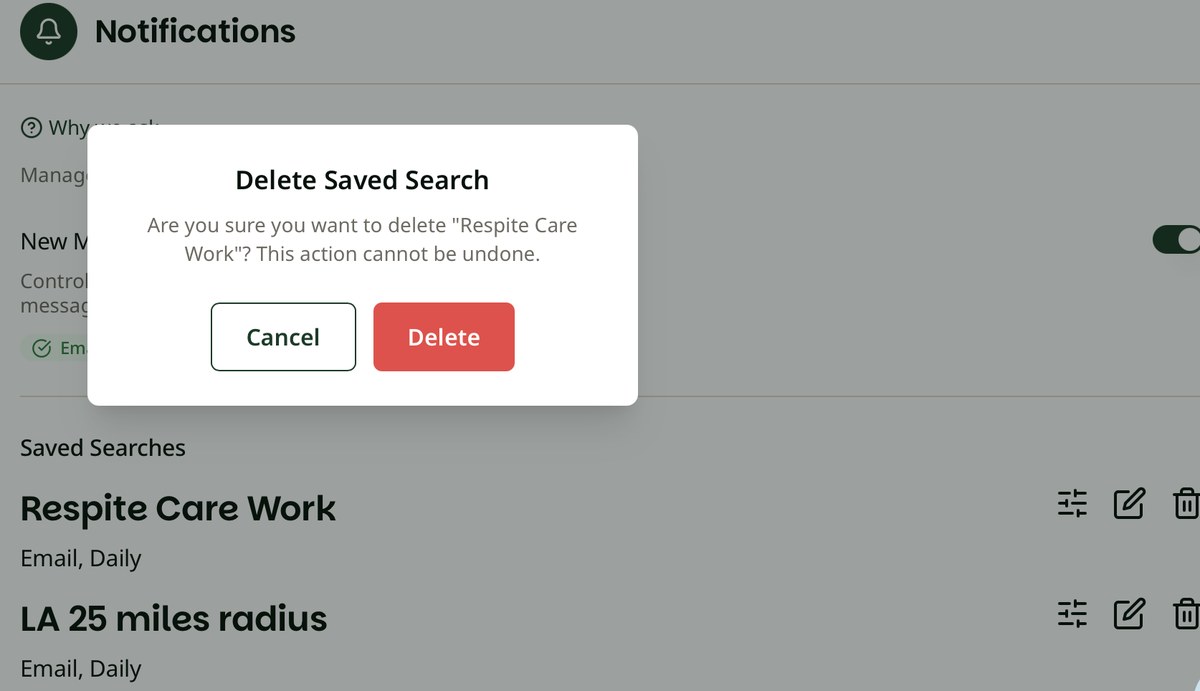
If you don’t need the search anymore, tap the trash can icon next to it in the Saved Searches list. A window asks if you’re sure. Tap Delete to remove the search, or Cancel to keep it. Deleting can’t be undone. However, you can always recreate the saved search under Find Jobs.
*The pencil icon’s window also has a Delete option.
On a phone
On a computer
If you change your mind later, set the search up again on Find Jobs and tap Save.
What about message emails?
Before you turn off message emails
The New Message Emails switch is separate from your saved searches. It controls whether IHSS Connect emails you when a family sends you a message on the site. These emails go out no more than once a day.
If you turn it off, you won’t get an email when a family writes to you. Sign in and check Messages on your own schedule so no one is left waiting.
The New Message Emails switch is separate from your saved searches. It controls whether IHSS Connect emails you when a family sends you a message on the site. These emails go out no more than once a day.
If you turn it off, you won’t get an email when a family writes to you. Sign in and check Messages on your own schedule so no one is left waiting.

Quick reference
Quick reference
| I want to… | Go to | Then |
|---|---|---|
| Stop showing up when families search | My Account → Work Status | Turn off the switch until it reads Not Currently Available |
| Show up in search again | My Account → Work Status | Turn the switch on until it reads Available for Work |
| Stop emails from one saved search, but keep it | My Account → Notifications → Saved Searches | Pencil icon → Email Notifications off → Done |
| Remove a saved search | My Account → Notifications → Saved Searches | Trash can icon → Delete |
| Stop emails about new messages | My Account → Notifications | New Message Emails switch off |
- Stop showing up when families search: My Account → Work Status → turn off the switch until it reads Not Currently Available.
- Show up in search again: My Account → Work Status → turn the switch on until it reads Available for Work.
- Stop emails from one saved search, but keep it: My Account → Notifications → Saved Searches → pencil icon → Email Notifications off → Done.
- Remove a saved search: My Account → Notifications → Saved Searches → trash can icon → Delete.
- Stop emails about new messages: My Account → Notifications → New Message Emails switch off.
Need help?
If your screen doesn’t match these pictures, or a switch won’t change, contact the IHSS Connect team through the Contact Us page and tell us what you see. The screens in this guide were captured on October 7, 2026.
Can’t find a setting?
If your screen doesn’t match these pictures, or a switch won’t change, contact the IHSS Connect team and tell us what you see.
Sources
- IHSS Connect — My Account (sign-in required) — Work Status switch and its on/off wording; Notifications section; New Message Emails switch; Saved Searches list, pencil and trash can icons; Edit Job Notification window; Away message wording. Captured October 7, 2026.https://ihssconnect.com/profile
- IHSS Connect — Find Jobs — The Save button that creates a saved search.https://ihssconnect.com/search?tab=jobs
- IHSS Connect — Contact Us — Where to get help with your account.https://ihssconnect.com/contact-us
The live IHSS Connect site is the primary authority for this guide. Email timing for saved searches and message notifications was confirmed by the IHSS Connect team. If the site changes, the site governs.