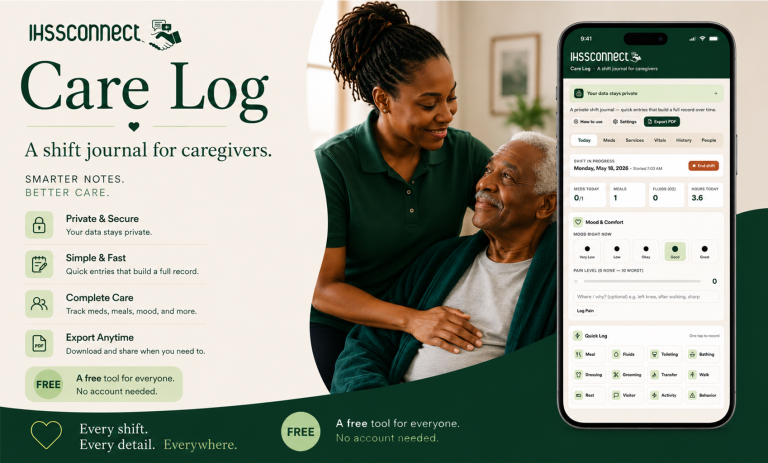
Caregiving moves fast — and important details can easily get forgotten. Care Log helps caregivers keep organized daily notes about routines, behaviors, medications, appointments, symptoms, and care needs right from their phone or tablet. Always free to use and no account with IHSS Connect required.
Your data stays private
Your log lives in this browser. Download a backup file regularly — especially before clearing browser data or switching devices.
Log entry
Add medication
How to use the Care Log
Today — your shift dashboard
The main page where you log everything as it happens. Includes mood, pain, one-tap activity chips, a free-text note field with an incident-flag button, and a live timeline of today's entries.
Meds — medication schedule and tracking
Add each scheduled medication once. The tool shows you today's doses automatically and lets you mark each as taken or refused with one tap. Refused medications are highlighted in the PDF.
Tasks — IHSS-authorized task checklist
Check off the IHSS-authorized tasks you complete each shift (domestic services, personal care, paramedical, etc.). Tasks reset every day and are recorded in your timeline and the PDF.
Vitals — blood pressure, glucose, weight, temperature, sleep
Log vitals whenever you take them. All readings flow into the timeline and the PDF, so doctors can spot trends over time.
History — past entries and PDF export
Pick a date range to see all your entries grouped by day, with summary stats (meals, fluid intake, medication adherence, incidents, etc.). This is also where you export the PDF or download a CSV.
People — profiles and backup
Information about the care recipient and you, the caregiver. Also has Download Backup (save a copy of all your data), Restore (load a backup), and Wipe (erase everything).
Why log every shift?
Three reasons: (1) a written record helps doctors and family see patterns and changes over time, (2) if anyone ever questions your hours or care quality, a contemporaneous log is your best evidence, (3) it makes hand-offs to other caregivers smooth and consistent.
What's an "incident"?
Anything unexpected or concerning: a fall, a new bruise, refusing food or medication, an unusual mood change, a visit from another caregiver, an ER trip. When you flag something as an incident, it gets a red highlight in the PDF and its own summary section.
Will I lose my data if I close the browser?
No. Your data is saved in this browser on this device, so it'll be here next time you visit this page. But if you clear browser data, switch devices, or use a different browser, the data won't follow. Use the Download Backup button regularly — especially before clearing browsing data — to save a copy you can restore later.
Can I use this on my phone?
Yes. The tool is designed to work on phones and tablets. For the best experience, add this page to your home screen so it opens like an app: on iPhone use Share → Add to Home Screen, on Android use the three-dot menu → Add to Home screen.
How do I share my log with family?
Tap Export PDF, pick a date range, and save it as a PDF. You can email it, text it, print it, or upload it anywhere you'd share any other document.
Does this replace my IHSS timesheet?
No. This is a separate care log for your own records and to share with doctors, family, and social workers. You still submit your IHSS timesheet the usual way. However, having a detailed daily log is very useful if your hours are ever audited or questioned.
Settings
Your data never leaves this browser. To share with family or your social worker, use Export PDF.

Keeping Your Data Safe on a Phone or Tablet
A simple guide to downloading, storing, and restoring your Care Log backup — so your records are never lost.
1 What “Download Backup” actually does
2 Where does the file go on my phone?
- 1A share sheet appears right after tapping Download Backup
- 2Tap "Save to Files"
- 3Choose On My iPhone (local) or iCloud Drive (all Apple devices)
- 4Tap Save — find it later in the Files app
- 1File downloads automatically to your Downloads folder
- 2Open the Files app to find it
- 3Look for the name starting with ihss-care-log-backup-
- 4Optional: move it to Google Drive for safekeeping
The easiest method for most caregivers: email it to yourself
After downloading on iPhone, tap Mail or Gmail in the share sheet and send the file to your own address. On Android, open Files, long-press the backup file, and share it to your email app.
Now the backup lives in your inbox with a clear timestamp. If you ever switch phones, lose your device, or clear your browser — open that email from any device, save the attachment, and restore.
This is the most reliable method for caregivers less comfortable with technology. Emails don’t disappear when you swap phones.
3 How to restore from a backup file
Step-by-step restore
Open the Care Log and go to the People tab.
Tap Restore from File. Your phone’s file picker opens.
Navigate to where you saved the file: Downloads, Files app, iCloud Drive, or open your email first, save the attachment, then find it in Downloads or Files.
Tap the ihss-care-log-backup-[date].json file. A confirmation shows the entry count and Care Recipient’s name so you can verify it’s the right file.
Confirm the restore. All previous entries, medications, and profile information load immediately.
4 Your data does NOT transfer automatically between devices
If you log on your phone Monday and open the Care Log on a different device Tuesday, that device starts completely empty. The Backup and Restore feature is the only bridge between devices.
The Care Log stores everything inside your browser using a feature called localStorage — like a notebook that lives inside one specific browser on one specific device. Opening the Care Log anywhere else shows a completely different, empty notebook.
5 Practical advice: when to back up
After any serious incident — fall, ER visit, behavior episode
Whenever something significant happens — a fall, a trip to the ER, a severe behavior episode, a medication refusal — download a backup immediately after logging it. This creates a timestamped record that is very difficult to dispute later, and ensures the entry is preserved even if something happens to your phone that night.
At the end of each week, as a habit
Build a routine of downloading a backup every Friday evening or every Sunday before the new week starts. Email it to yourself and leave it in your inbox. Seven days of logs in a single file is a reasonable amount — not so much you’d lose everything if something went wrong, and not so frequent it becomes a burden.
Before clearing browser data or switching phones
Any time you plan to clear your browsing history, clear your cache, or do a factory reset — download a backup first. Also download before upgrading to a new phone. The upgrade process does not transfer browser localStorage, so you’ll need to restore from the backup file once set up on the new device.
Before a doctor’s appointment or social worker visit
When you need to present records, use the Export PDF feature in the History tab for the actual document. It’s also good practice to download a backup right before exporting — that way you have a complete machine-readable copy of all your data at that exact point in time.
Simple step-by-step for caregivers new to smartphones
Go to the People tab. Tap Download Backup. When the share sheet appears, tap Mail or Gmail. Type your own email address. Tap Send.
Your data is now in your email. To restore later: open that email from any device, tap the attachment, save it to Files (iPhone) or Downloads (Android), then go to the Care Log’s People tab, tap Restore from File, and find the saved file.
6 Make the Care Log feel like a native app
- 1Open the Care Log in Safari
- 2Tap the Share button (box with arrow) at the bottom
- 3Scroll down and tap "Add to Home Screen"
- 4Tap Add — it appears on your home screen like any app
- 1Open the Care Log in Chrome
- 2Tap the three-dot menu (⋮) in the top right
- 3Tap "Add to Home screen"
- 4Tap Add — the Care Log icon appears on your home screen